ADHD-Closet
Tutorial: Wardrobe AI Closet
Welcome to your personal wardrobe organizer! This tutorial will walk you through the main features and workflows.
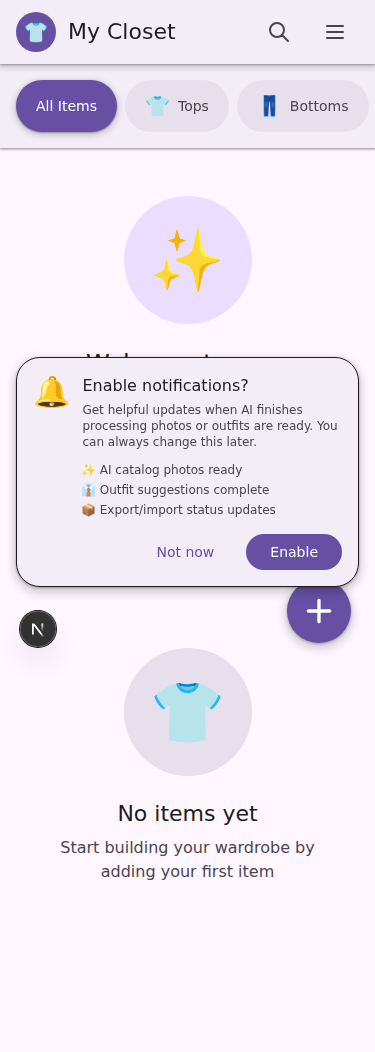 ADHD-friendly mobile interface with category-first navigation
Table of Contents
Your First Item
Adding items is fast and easy—just a few taps to get started.
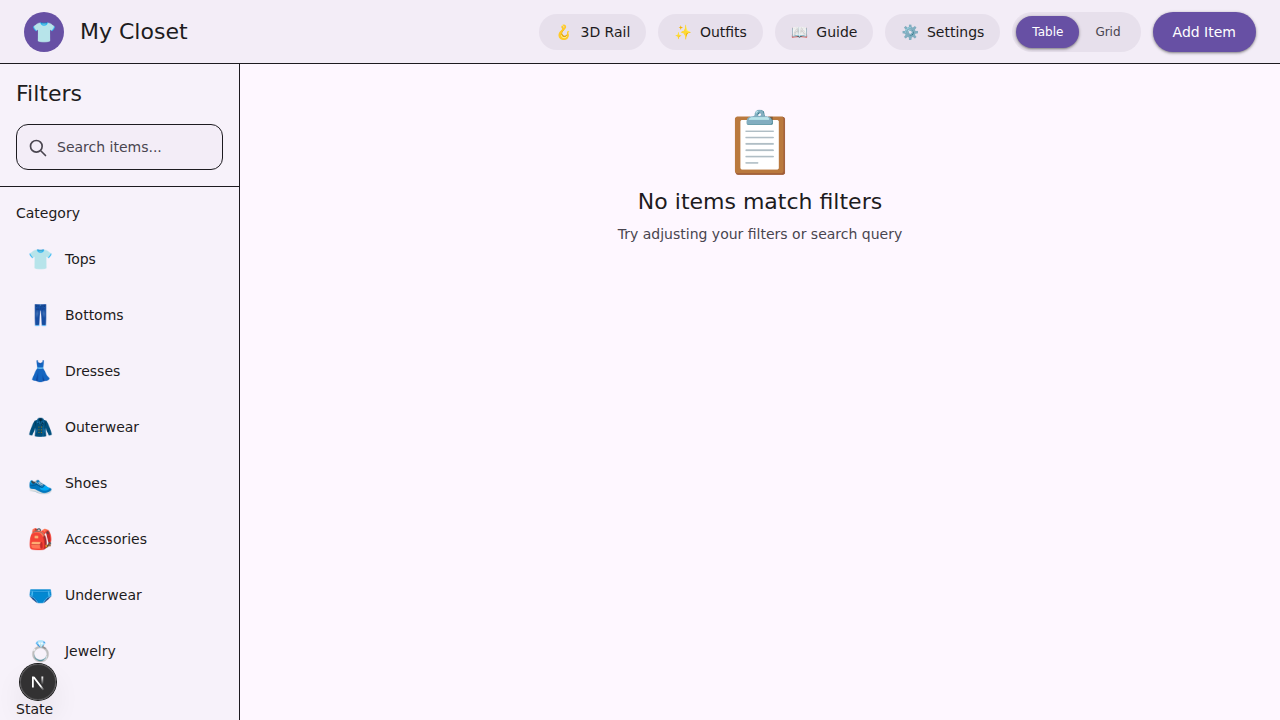 Desktop view when you first start - click the + Add Item button
Step 1: Take a Photo
- From the home screen, tap the + Add Item button (the big purple floating button)
- Choose Take Photo or Upload from Gallery
- Take a clear photo of your item laid flat or on a hanger
- Tip: Good lighting makes AI inference more accurate
- Tip: Avoid busy backgrounds if possible
Step 2: Add Front View
- The first photo you upload is the front view (required)
- Once uploaded, the photo appears immediately
- Tap Continue to move to the next step
Step 3: Add Back View (Optional)
- Add a back photo if your item has interesting details on the back
- Skip this if you’re in a hurry—you can always add it later
- Tap Skip or Continue
Step 4: Add Label/Detail Photos (Optional)
- Upload close-ups of:
- Brand labels (helps AI identify brand and size)
- Care labels (washing instructions)
- Details like embroidery, buttons, or prints
- Progressive disclosure: Only shown if you tap “Add More Photos”
- Skip this to add items quickly
Step 5: Fill in Details (Optional)
- Title: Name your item (e.g., “Black Band T-Shirt”)
- Category: AI will suggest a category, but you can change it
- Brand: Type the brand name if known
- Tags: Add tags like “goth”, “comfy”, “favorite”, “going-out”
Step 6: Save!
- Tap Save Item
- The AI will start processing your item in the background
- Generating catalog images
- Inferring category, colors, and attributes
- Extracting label information (if label photos provided)
- You can keep using the app while AI works!
Creating Your First Outfit
The outfit generator helps reduce decision paralysis by giving you a few curated options.
Step 1: Start the Generator
- From the home screen, tap Outfits in the navigation
- Tap + Generate Outfit
Step 2: Set Constraints
Answer a few quick questions to guide the AI:
Weather (optional):
- Hot / Warm / Cool / Cold / Rain / Snow
- Tap Auto to use your location’s current weather
Vibe (optional):
- Dysphoria Safe: Comfortable, gender-affirming pieces
- Confidence Boost: Your best, most empowering items
- Dopamine: Fun, colorful, mood-lifting pieces
- Neutral: No specific vibe preference
Occasion (optional):
- Type in where you’re going (e.g., “work”, “concert”, “coffee date”)
Time Available:
- Quick: Simple outfits, minimal accessories
- Normal: Includes accessories and layering
Step 3: Generate
- Tap Generate Outfit
- AI creates 1-5 ranked outfit suggestions
- Each outfit shows:
- Item thumbnails
- Short explanation
- Optional swap suggestions
Step 4: Panic Pick (Emergency Mode)
If you’re overwhelmed or in a hurry:
- Tap ⚡ Panic Pick
- AI instantly generates a single safe, reliable outfit
- No thinking required!
Step 5: Rate Your Outfit
After wearing an outfit:
- 👍 Liked: AI learns what works for you
- 👎 Disliked: AI avoids similar combinations
- 😐 Neutral: No preference
Using Desktop Power Tools
On screens ≥1024px wide, you unlock advanced features.
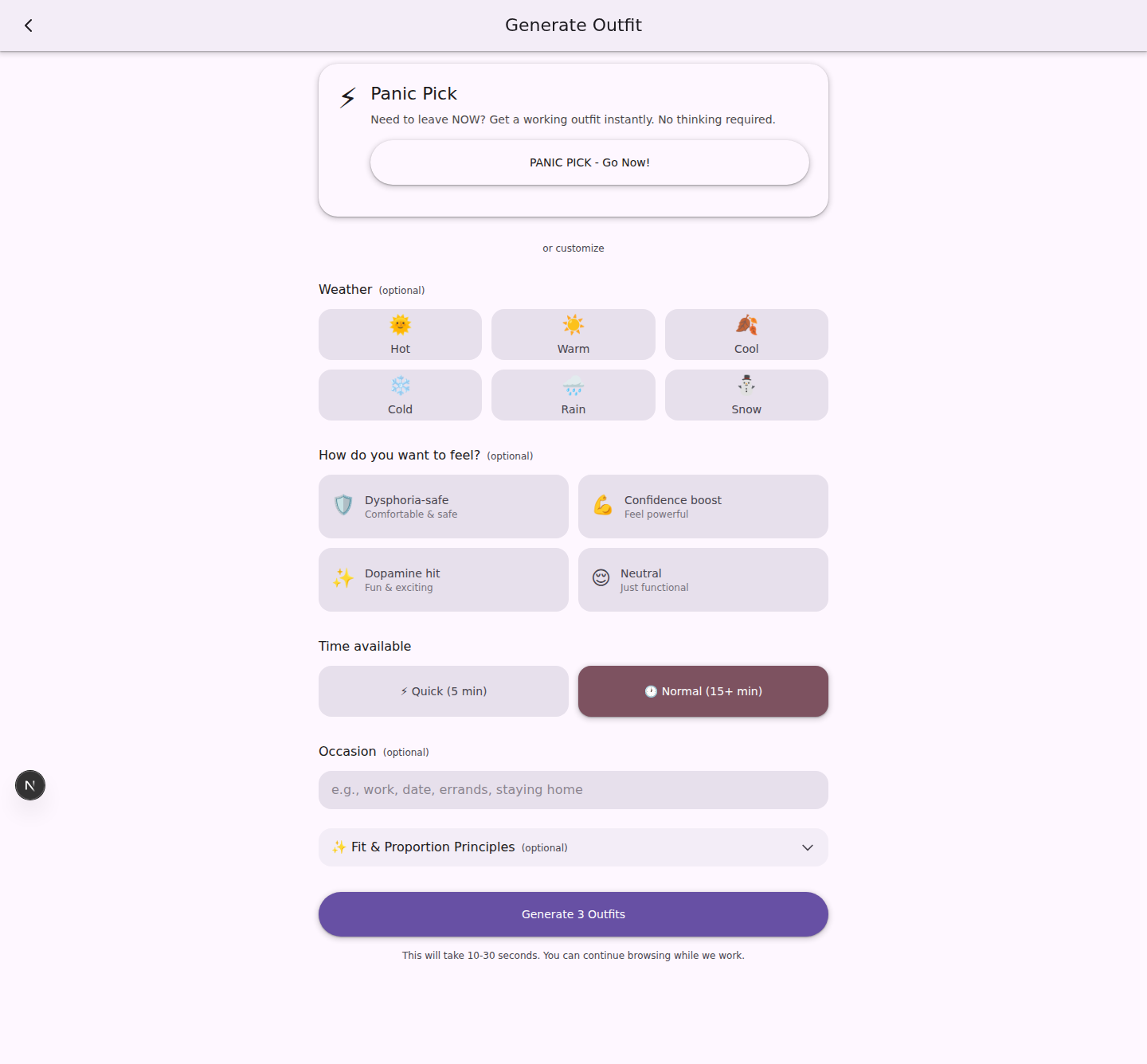 Desktop view with filters, bulk editing, and outfit generation
Bulk Edit Table
What it does: Edit multiple items at once
How to use:
- Switch to Table View (toggle in top right)
- Select multiple items using checkboxes
- Use bulk actions:
- Change state (Available → Laundry)
- Add tags to multiple items
- Delete multiple items
- Batch regenerate AI images
ADHD benefit: Reduce repetitive clicks, batch similar tasks
Keyboard Shortcuts
Press ? or Shift+/ to see all shortcuts:
- Navigation:
H: HomeA: Add ItemO: OutfitsS: Settings
- Actions:
Esc: Close dialogs, cancel actionsEnter: Confirm primary action/: Focus search
- Bulk Edit:
Ctrl/Cmd + A: Select allDelete: Delete selected items
Side-by-Side Compare
Compare two items before deciding:
- Select two items in table view
- Click Compare button
- View items side-by-side with full details
Advanced Search
Click More Filters to access:
- Search by brand
- Filter by multiple tags
- Search by color palette
- Combine multiple filters
Common Workflows
Morning Routine: Get Dressed Fast
- Tap Outfits → Panic Pick
- Get one instant outfit suggestion
- Wear it and rate it later
Weekly Laundry Day
- Go to Home
- Tap category All
- Switch to Table View (desktop)
- Select all items you just washed
- Bulk action: Set State → Available
Declutter Session
- Go to Analytics to see items by category
- Identify overcrowded categories
- Go to Home → Table View
- Select items you haven’t worn
- Bulk action: Set State → Donate
- When ready, take donation items in one trip
Plan Outfits for the Week
- Go to Outfits → Generate
- Set Weather for the week
- Generate 5-7 outfits
- Screenshot or save each
- Rate them after wearing
Tag Organization
- Go to Analytics to see your top tags
- Notice duplicate tags (e.g., “black” vs “black clothes”)
- Go to Home → Advanced Search
- Search for old tag → Select all
- Remove old tag
- Add new consistent tag
Tips for Success
ADHD-Friendly Habits
- Add items immediately: When you buy something new, photograph it right away
- Use Panic Pick: No shame in letting AI decide
- Set laundry reminders: Enable in Settings
- Batch similar tasks: Use bulk edit for repetitive actions
- Progressive disclosure: Don’t fill in every detail—AI can help
Photography Tips
- Lay items flat on a neutral surface
- Use natural light near a window
- Take photos in batches when energy is high
- Don’t aim for perfection—AI cleans up the image
Tagging Strategy
Use tags for what matters to you:
- Style: goth, punk, emo, soft, edgy
- Comfort: comfy, stiff, scratchy, soft
- Occasion: work, concert, casual, fancy
- Mood: confidence, dysphoria-safe, dopamine
- Functional: layering, statement-piece, basics
Keyboard Shortcuts (Desktop)
For power users on desktop:
Global:
/- Focus searchg- Open outfit generatorEsc- Close modal/panel
Inventory:
j/k- Next/previous itemEnter- Open selected iteme- Edit selected iteml- Toggle laundry stated- Mark for donation
Bulk Actions:
Shift + Click- Range selectCmd/Ctrl + A- Select allCmd/Ctrl + Enter- Apply bulk action
Outfits:
o- Open outfit boardp- Panic pick (instant outfit)
Need Help?
- Can’t find an item? Use the search bar (top of home screen)
- AI not working? Check Analytics → AI Job History for errors
- Lost data? Import your last backup from Settings
- Feeling overwhelmed? Use Panic Pick or category tabs to narrow choices
Remember: This app is designed for you. Use it in whatever way reduces friction and makes your life easier. There’s no “wrong” way to organize your wardrobe!